
Canvas and cards
Folders open as canvases and files as cards. Create, read, edit, rename, select, arrange, and delete them; card places are saved beside your work and kept out of git.
Folders are canvases
Each folder has its own canvas, and the files and subfolders in it are the cards on it. A folder card lists what the folder holds; double-click its card, anywhere but its name, to go to that folder's canvas.
The canvas follows the folder on disk. When a file is added by any tool, its card appears. When a file is deleted, its card goes.
A canvas leaves out folders such as .git, node_modules, dist, build, out, target, and vendor, system files such as .DS_Store, and CLAUDE.md and AGENTS.md at the top of the workspace. It shows at most 300 cards. Past that, an item has a card only if it already has a place, a description, or a connection.
What a card shows
- Notes, which are Markdown files, are shown rendered on the card: headings, lists, tables, images, and task boxes. Scroll over a long note to read it in place. A table or code block wider than the card scrolls sideways.
- Text and code files show the start of the file.
- Folders list what they hold.
- Images and videos have the shape of their picture. Pointing at a video plays it without sound, a click selects the card, and a drag moves it. A sound's card has a player.
- PDFs and books (EPUB, Kindle, FictionBook, and comic book archives) show their cover at one size. A button on the caption hides the cover.
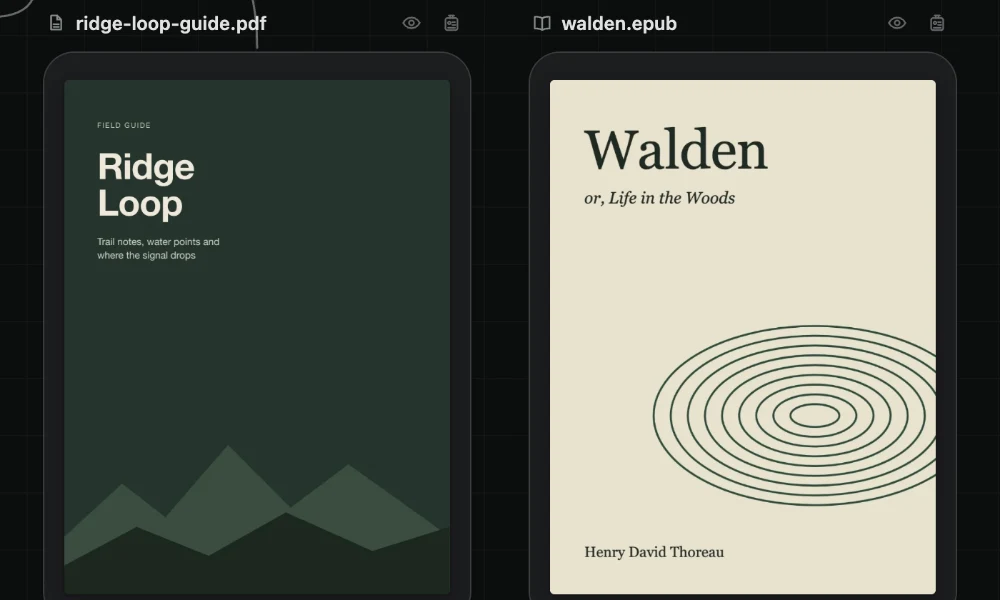
A note is named without its .md ending. Other files keep their full name, so index.ts and index.css stay easy to tell apart.
Editing
On the card. Double-click a note to edit it right on its card. Press Escape or click elsewhere to finish. Notes up to 128 KiB are edited on the card; a larger note opens in Card Detail instead.
In Card Detail. Card Detail shows one file over the whole canvas area, with the sidebar and the Agent Area beside it. Escape closes it. A file other than a note opens there when you double-click its card, anywhere but its name. A selected note has an Expand button, and Quick Open and Quick Search open any file there, notes included. A note in Card Detail has these views of the same file:
- Rich, the default, where you edit the note as formatted text.
- Source, where you edit the Markdown itself.
- Preview, where you read the rendered note.
They all work on one copy of the file, so switching between them never loses a change. Code and other text files open in the source view.
PDFs and books open in Card Detail to be read. The PDF reader has thumbnails, an outline, search, and zoom. The book reader has pages or one scroll, contents, search, text size, and the place where you stopped. Select text and choose Grow branch to make a note connected to the document.
A video can be trimmed in Card Detail. The file keeps its name and its card, and undo puts the whole video back.
Creating, moving, and resizing
- Create. Double-click an empty part of the canvas, right-click it, or use the Create button. Choose New Note, New Image, New Video, New Audio, or New Folder, or Paste or Import Files.... The card appears where you double-clicked. New Folder makes
untitled folderat once. There is no New File: make other files in the sidebar. - Add files. Drop files onto the canvas to add them to the folder.
- Move. Drag a card. Snap guides help you line it up with the cards around it.
- Resize. Select the card of a note, another file, or a folder, then drag a corner or a side. The card of an image or a video has its picture's shape, a PDF or a book has one size, and a sound keeps the size of a file card.
- Rename. Double-click the card's name and type. Enter renames the file; Escape leaves it as it was. The card keeps its place and size, and connections that name the card are updated.
Selecting and arranging
- Click a card to select it. Shift-click adds a card to the selection or takes one out.
- Drag a box from an empty part of the canvas to select every card it touches. Hold Shift to start a box on top of cards, which helps on a crowded canvas.
- Two or more selected cards are a set. A set moves as one when you drag it. Its toolbar has Arrange (Grid, Row, or Column), Duplicate, Copy Paths, and Delete.
- Tidy Canvas, the first of the view controls at the lower left of the canvas, lays out every card along its connections. Shift+Alt+F does the same. BaseHalf then asks Keep this arrangement?, and Revert puts every moved card back.
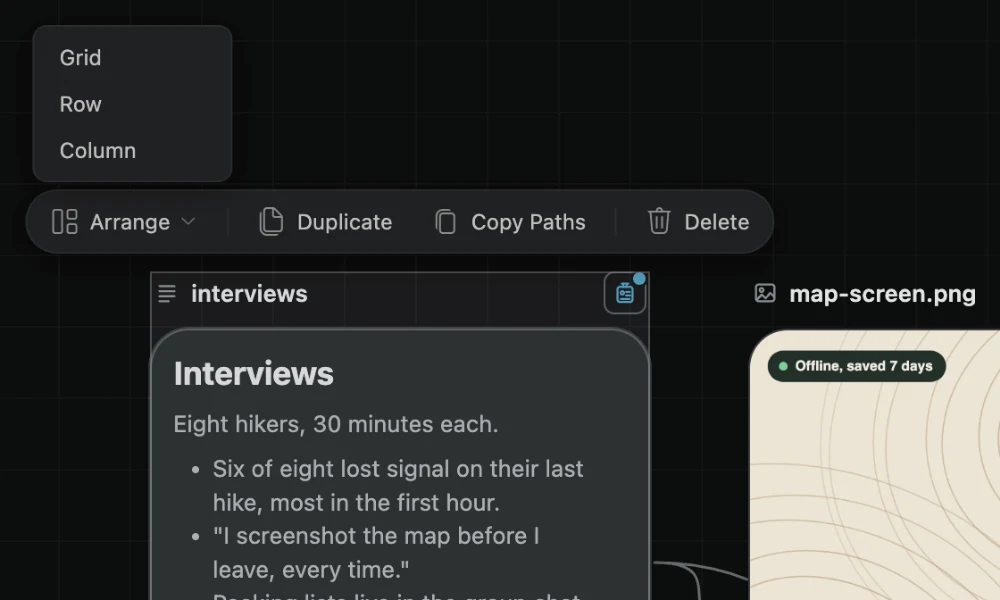
Moving a set, arranging it, and tidying are each one step of undo. BaseHalf moves cards only when you ask it to.
Deleting and undo
A delete on the canvas happens at once and asks nothing. One undo puts back exactly what the step took: the files as they were, with their places, descriptions, and connections, whatever their size. What you deleted goes to the Trash when the window closes. A delete in the sidebar's file list still asks first.
Where card places are kept
Card places and sizes are saved in the folder, under .bh/. BaseHalf writes its own ignore file there, so card places stay out of git. It never touches your .gitignore.
- A clone of the folder, on another computer or for another person, starts with fresh card places.
- Descriptions, reading aids, the upstream lists BaseHalf keeps, and the prompts, settings, and records of generated files are not ignored. You can commit them, and they travel with the folder.
- Where you were looking on each canvas is kept per machine, outside the folder.
The sidebar
The left sidebar has three views: your files, Source Control, and Search. They are built on VS Code's own Explorer, Source Control, and Search, so your Git branches, changes, and publishing work as you expect. Opening a file from the file list or Search opens it in BaseHalf: a folder as its canvas, a file in Card Detail. A changed file in Source Control opens its changes.
Next
- Connections: link cards so their context flows where it is needed.
- Working with agents: let agents work on the same canvas.